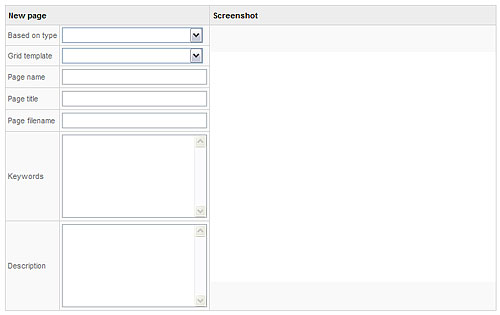
Based on type area – The default is page with grid, if you have more types installed in your CMS, this area will allow you to create pages with different types of grid areas.
Grid template area – Here you may choose a grid template. The default is empty, if you wish to re-use a template that you have saved (save as) earlier in the edit grid mode you can do this by choosing the template on this drop down menu.. It will spare you the time of making a similar page to a one you have already made.
Page name are – this is a mandatory area, where you name your new page. This name will show in your website menu.
Page title area – this is a mandatory area, where you give a title to your page. This area allows you to add additional information about your page. It will not display to your visitors.
Page filename area – this is also a mandatory area. It is the name under which your file will be stored in your CMS
Keyword area – this is used for search engines. This keyword is the word your visitors will type into the search engine when looking for your page.
Description area – this the description the search engines will give when displaying the search results for the keyword your visitors are looking for.
Screen shot area - this is the place where you can view the screenshot of the page that you choose in the "Based on type" area.
After putting in all the information you may save your changes or cancel them using the action menu on the bottom of your page.