ADDING PLUGINS TO THE WEBSITE 

After creating and saving your plugin you may add it to your website. To do this you will have to first create a new webpage or go to the webpage you have already prepared. When viewing the page selected for the Plugin go into the Edit grid section using the Page function and press the Add plugin button.

First Edit grid          than Add plugin

The part of the screen where you added your plugin should now look like this (see next page):

insert image here
insert image here
insert image here

But after pressing the Save button the screen will change. You will now be in the View mode and your screen should look like the picture on the right:

insert image here

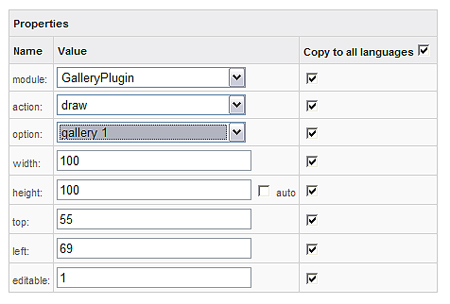
When this picture shows up on the right side in the View mode, you can now press the Edit button in order to choose which plugin you want to use in the specific square. While in the Edit mode please click on the square with the title “Insert plugin here”. Doing this will open up an edit box and allow you to choose between different options. This is how the edit box will look:

insert image here

This edit box allows you to edit specific plugin setting. In order for your plugin to work correctly all these settings must be set right.

From module you should choose the plugin you wish to use. In this case it will be the galleryplugin. In action area the deafult option is draw so you do not have to change here anything. Option area in this case is to choose the gallery you wish.

In widht and hight areas you can specify the size of your gallery and in top and left areas you can decide where you want to put the gallery on the page from the top and the left side of page.