SUBSCRIPTION PLUGIN
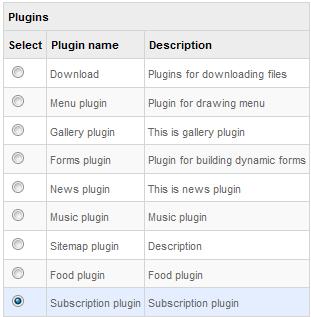
This plugin allows your visitors to subscribe to the newsletter. To start editing a subscription plugin you must first click the Plugin button on the top menu. Select the Subscription plugin from the Plugins list simply by clicking on it, and click the Next button in the bottom menu.
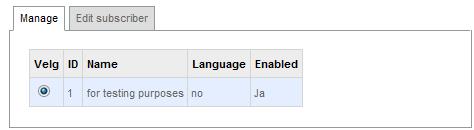
After pressing the Next button you will see a list of subscription groups (i.e. see the screen below). As you can see it lists subscriptions, their IDs, their language and shows whether they are enabled or not.
The bottom action menu will look like this:
Add
- This button allows you to create a new subscription group.
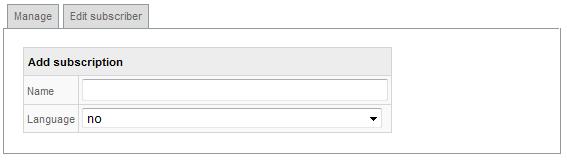
After pressing this button you should see this screen:
Here you should type in the name of the new subscription group. The language allows you to set the language of the subscription.
Edit
- This button allows you to edit the name of a specific subscription.
The screen that shows after pressing this button is the same as when pressing the Add button. The only difference is that here you are editing an already created subscritpion, whereas pressing the Add allows you to create a new subscription.
Enable
- This option allows you to enable or disable a specific subscription.
If a subscription group is disabled it will not be shown when you will want to send a newsletter. When created a new subscription is disable which is a default setting.
Settings - This option allows you to change settings of the subscription group. You can change e-mail from which the e-mails will be sent and e-mail to reply, where replies from subscribers will be sent.
Delete - This button deletes the specific subscritpion group from the list.
Next - his option sends you further into the edit mode. It allows you to set additional options of the selected subscription group. After pressing the button, you will have a list of subscribers, their ids and whether they are enabled or not.
After clicking the Next button you will have the following bottom action menu:
The Add icon allows you to add an e-mail to the subscription group All you need to do is type in the e-mail and save the changes.
The Edit icon allows you to edit the selected e-mail address.
The Enable icon allows you to enable or disable the selected e-mail address. When disabled the subscriber won't receive newsletters.
The Delete icon allows you to delete the selected e-mail address.
The Back icon takes you back to the subscription list.