
FORMS PLUGIN

The Forms plugin allows you to build forms that can be used on your website. You may build practically any form you wish, such as contact forms, register forms etc.
After selecting the Forms plugin and pressing the Next arrow you will be taken to the plugins Manage screen:

insert image here

This screen shows the ID, Name and Language of all the forms you have already available in your website.
It also shows if the form is Enabled, and which  plugin is currently selected for editing.


Once in the Form plugin mode the actionmenu will enable additional editing options (next page).

insert image here


This Add         button is used to add new items. Depending on the mode you are using, you will be able to add different types of items. Since this is the Form plugin Manage mode, pressing the Add button will take you to the edit screen used for adding new forms. Each form contains three main options which are Properties, Email options, Additions. These options are set when you Add a new form.


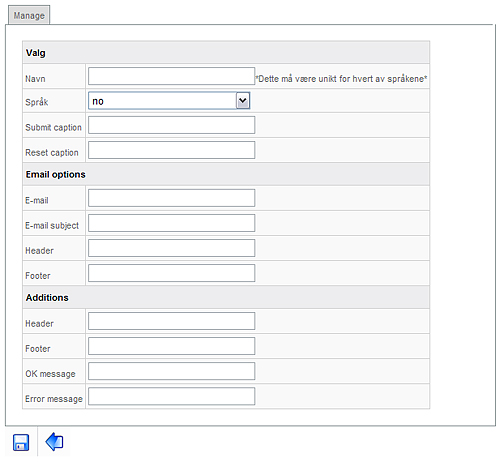
This is how your screen should look after pressing the Add button:

insert image here
insert image here

Properties:
Name area: Type in the name of the form you are creating, like “contact us” or “tell a friend”. This name will be seen in the list of forms in the Form plugin section.
Language area: If your website is in more then one language, choose here the language of the form you are creating.
Submit caption area: Type in the name of the submit button, for example “send”. By pressing the submit button your visitors will be able to send you the information he typed in the form.
Reset caption area: Here you type in the name of the reset button. This button is used when your visitor decides he would like to rewrite the information he gave in the form. When your visitor  presses this button, all the information typed in by him will be erased. Of course he can also do this just by pressing the delete button on his keyboard, but that might take a little longer to do.   
Email options:
E-mail area: Here you type in your email. When the visitor is done typing in the information and presses the submit button, all the information the visitor typed into the form will be sent to this email.
E-mail subject area: Here you type in the subject you would like to see on the email submitted to you. For example: “contact from website”
Header area: Allows you to type in the header you would like to see on the email submitted to you.
Footer area: Allows you to type in the footer you would like to see on the email submitted to you.
Additions:
Header area: This is the header on the form your visitors will see.
Footer area: This is the footer on the form your visitor will see.
Ok message area: This is the message your visitor will see when he successfully submits a message using the specific form.
Error message area: This is the message your visitor will see when he doesn’t succeed submitting a message using the specific form. This may be caused by an error or connection issues.
These are all the options available when creating a new form. You may use the Save button to keep your settings or press Cancel if you don’t wish to do so.

The next option is the Editer mode.

Editor        This option allows you to edit the settings made in Add. To access this edit mode, just select the form you want to edit and click the Editor button. A screen like the one when pressing the Add button will show. The difference is that this option is used only for editing, whereas the Add option is used for making new forms.


Delete        This button deletes the selected form. To delete a form, just click on it and then press this button – the Delete button.


Cancel        This button takes you out of the Forms plugin section.


Next        Pressing this button takes you further into the selected form. It is used to build, edit or update the selected form.


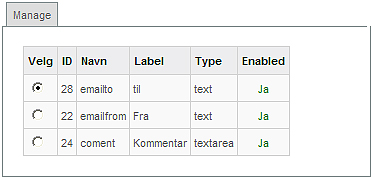
This is what you may see after pressing the Next button when a specific form is selected.

insert image here
insert image here
insert image here
insert image here
insert image here

This screen shows all the areas that are available for filling out by your visitors. Here you see the ID, Name, Label, and Type of the fields in the specific form.
It also shows if the specific field is Enabled.


As usual the bottom actionmenu will also change and give the following options:

insert image here