GALLERY PLUGIN

This plugin allows you to add a photo gallery to your website. To use this plugin select the Gallery plugin while in the Plugins list and press the Next button. After doing this you will see this screen.

insert image here

This screen shows a list of all the galleries created, their ID, Identifier, Name, Language and if the specific gallery is Enabled or not.

The bottom menu should look like this:

insert image here

Add         – This button allows you to create a new gallery plugin. After pressing this button you should see this screen:

insert image here
insert image here

Here you may name the plugin you will create and set the language of your news plugin. You should also choose an Identifier, which will identify the gallery.


Editor        – This button allows you to edit the setting of the specific gallery plugin that has been already created. The screen that shows after pressing this button is the same as when pressing the Add button. The only difference is that here you are editing an already created gallery plugin, whereas pressing the Add allows you to create a new plugin.


Enable        – This option allows you to Enable or Disable the specific news plugin. If a plugin is disabled it will not be showed in the edit box when editing your plugin in the Edit mode. The default is set to Disabled when you first create a new news plugin.


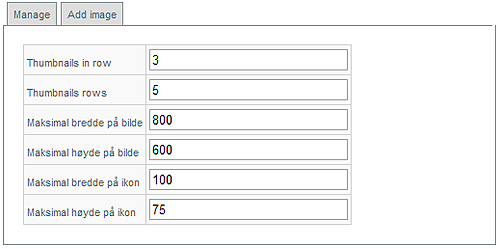
Settings         – The Settings options allow you to specify the size of thumbnails and real size images (picture below).

insert image here
insert image here
insert image here
insert image here

Please remember to keep the aspect ratio (proportion) when resizing your images.


Import          – This option allows you to actually add the images you wish to see in your gallery. By pressing this button you may download the images you wish from your CMS gallery.

Reorder         – This button allows you to reorder the items on your download list. After pressing this button you will see a screen with the pictures files that are ready for reordering
You may change the order by clicking and holding the field you want to move and then dropping it under the field you would like to see it.
After reordering your fields you should press the Save button if you wish to keep your changes. Pressing the Apply button works the same ass the Save button, but instead of going out of the Reorder mode it you will remain in it.

Delete        – This button deletes the selected news plugin.

Cancel         – This button takes you out of this section of your CMS.  
 
Next         – This option sends you further into the edit mode. It allows you to set additional options of the selected gallery plugin. After pressing this button, you will see the pictures in the current gallery plugin:

insert image here
insert image here
insert image here
insert image here
insert image here
insert image here

The bottom actionmenu gives you additional options and looks like this:


Add – This button allows you to add images to the selected gallery. Here you may upload an image you wish to add to the selected gallery plugin. You may also add a description of the image.


Editor – This button allows you to edit the specific image. The same screen shows as when using Add, but instead of adding a new pictures item, here you just edit an already existing one.


Reorder – This button allows you to reorder the items on your in the chosen gallery plugin list. You may change the order by clicking and holding the field you want to move and then dropping it beside the field you would like to see it. After reordering your pictures you should press the Save button if you wish to keep your changes. Pressing the Apply button works the same as the Save button, but instead of going out of the Reorder mode it you will remain in it.


Delete – This button deletes the selected gallery item.


Cancel – This button takes you out of this section of your CMS.


These are all the available options of the gallery plugin. After creating your plugin you can now add it to a webpage using the Edit grid and Edit functions in the Edit mode. A specific item can be added in the same way as other plugins.

insert image here